Documentation
SMTP
Require: Symcon >= 2.2
SMTP is a module of IP-Symcon that can send e-mails. The module is set up as an instance in IP-Symcon. It can be found under Manufacturer "None" and "Send Email (SMTP)". The individual properties can be found in the table.

In order to send a message to one or more e-mail addresses, the SMTP_SendMailEx function must be used.
The emails cannot be specially formatted. /n /r are functional but any formatting such as bold, italics etc will not work. A PHPMailer, for example, must be used for this instead.
Installation
The module is part of Symcon and does not need to be installed.
Setting up the instances in Symcon
The "SMTP" module can be found under "Add instance" using the quick filter. Further information in the documentation of the instances.
Configuration page
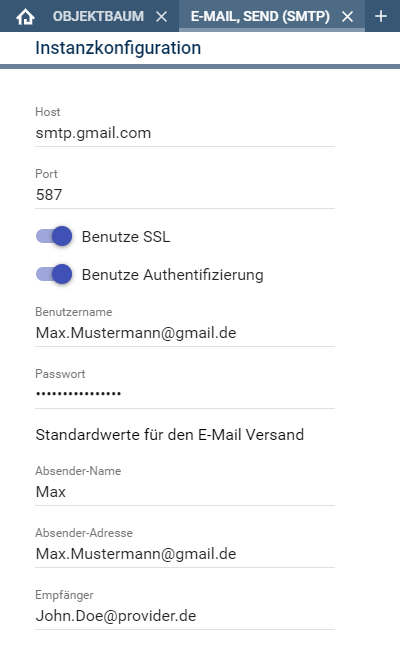
| Name | Description |
|---|---|
| Host | Server name or IP to the mail provider |
| Port | Port on which the server is working |
| Use SSL | Indicates whether SSL should be used |
| Verify Peer | Verifies the certificate of the server (SSL only) |
| Verify Host | Verifies that the certificate matches the host (SSL only) |
| Use Basic Authentication | Indicates whether a username/password is required |
| Username | Username (details are available from the mail provider) |
| Password | Password |
| Sender Name | The name visible to the recipient |
| Sender Address | The address visible to the recipient. Depending on the provider, the sender address must match one's own address. |
| Recipient | Only required for the SMTP_SendMail function, which automatically sends to the recipient of this field. |
An overview of host, port and authentication for many providers can be viewed here: table
Example with Gmail
Gmail does not allow direct access with the username and password without further settings. With these settings, it depends on whether two-factor authentication is activated.
Without two-factor authentication
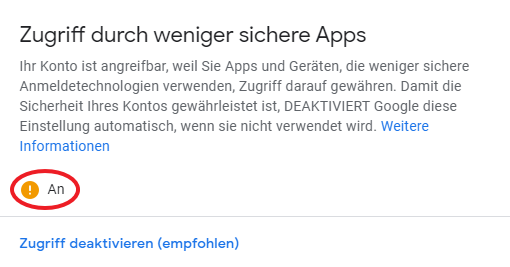
For use without two-factor authentication, "Access through less secure apps" must be activated in the administration of the Google account under "Security". A direct link would be myaccount.google.com/lesssecureapps .
When access is enabled, it looks like this. Username and password can now be used to log in.
With two-factor authentication
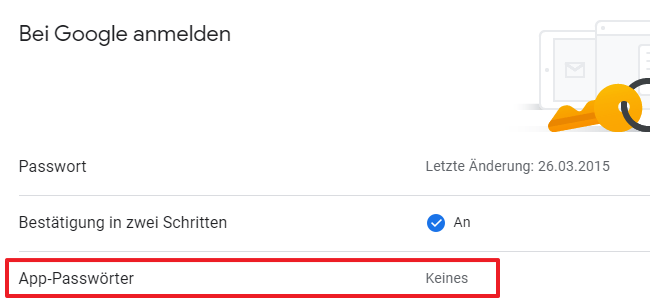
When using two-factor authentication, an app password must be assigned in the administration of the Google account under "Security" in the "Sign in to Google" section.
Click on the line "App passwords".
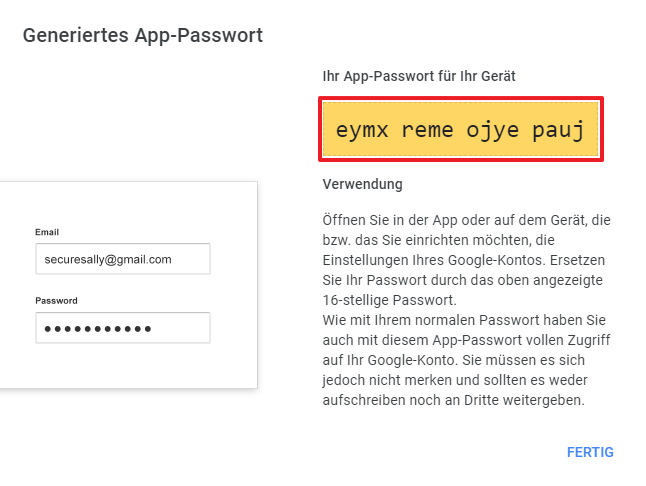
A new password with an individual name can be generated in the overview.
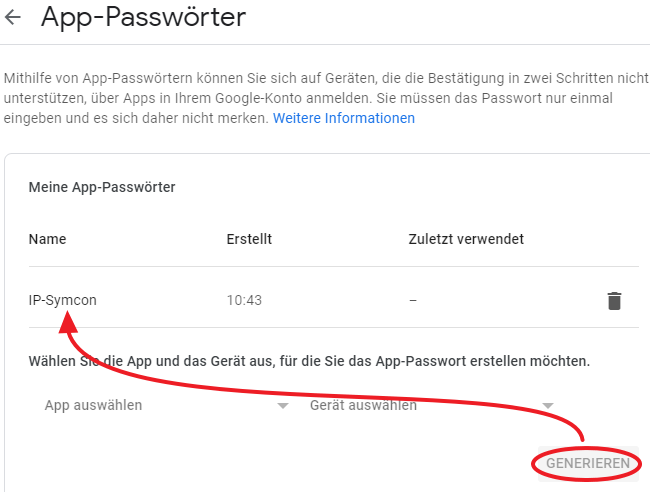
The generated password must then be entered in IP-Symcon.