Documentation
Catan

Important installation notes
- The WBM is most easily accessed by connecting the Catan C1 to the PC via USB and then opening https://169.254.252.10/.
- The Catan C1 currently does not support DHCP. Therefore, the IP address and gateway must be set manually. We recommend using the LAN1/LAN2 network ports (top sockets). The gateway is usually at .1. That means if your IP address is 192.168.178.250, then the gateway would be 192.168.178.1.
- Before installing the Symcon app, it is mandatory to install the current firmware (version 2026.0.3 LTS). It is available for download on the Phoenix Contact website (Controller Catan C1) in the Firmware section. Installation is performed in the WBM under "System -> Update".
- A prerequisite for installing the Symcon app is that the switch under "App Management -> Configuration -> Allow only signed apps" is disabled, as the Symcon app does not yet have a signature.
- After installing the Symcon app, configuring the firewall under "Security -> Firewall" is recommended to ensure functionality after the PLCnext update to 2026.6, which enables the firewall by default. For this, create a new rule under "IP Input Rules" with "To Port" set to "3777" and the comment "Symcon". Depending on the system used, additional ports may need to be opened. Alternatively, the firewall can be disabled after the PLCnext update to 2026.6.
- If a "Timeout" error appears while setting the license, it is very likely that the gateway is not configured correctly or internet access is blocked by the company firewall.
- If the message "SSL peer certificate or SSH remote key was not OK: SSL certificate problem: certificate is not yet valid" appears while setting the license, the system time is incorrect. In this case, check in the WBM under "Configuration -> Date&Time" whether at least one NTP server is configured and set to Active. Date and time are displayed at the top of the same page and should be current. If no NTP server is configured or it is not active, create a new server (for example, "pool.ntp.org"). Due to a current WBM bug, activation is currently only possible in Firefox.
- If problems occur during installation, support is always available to assist with the initial setup.
content
Installation
Symcon can also be purchased and installed via the PLCnext Store.
Download: Appfile (64-Bit)
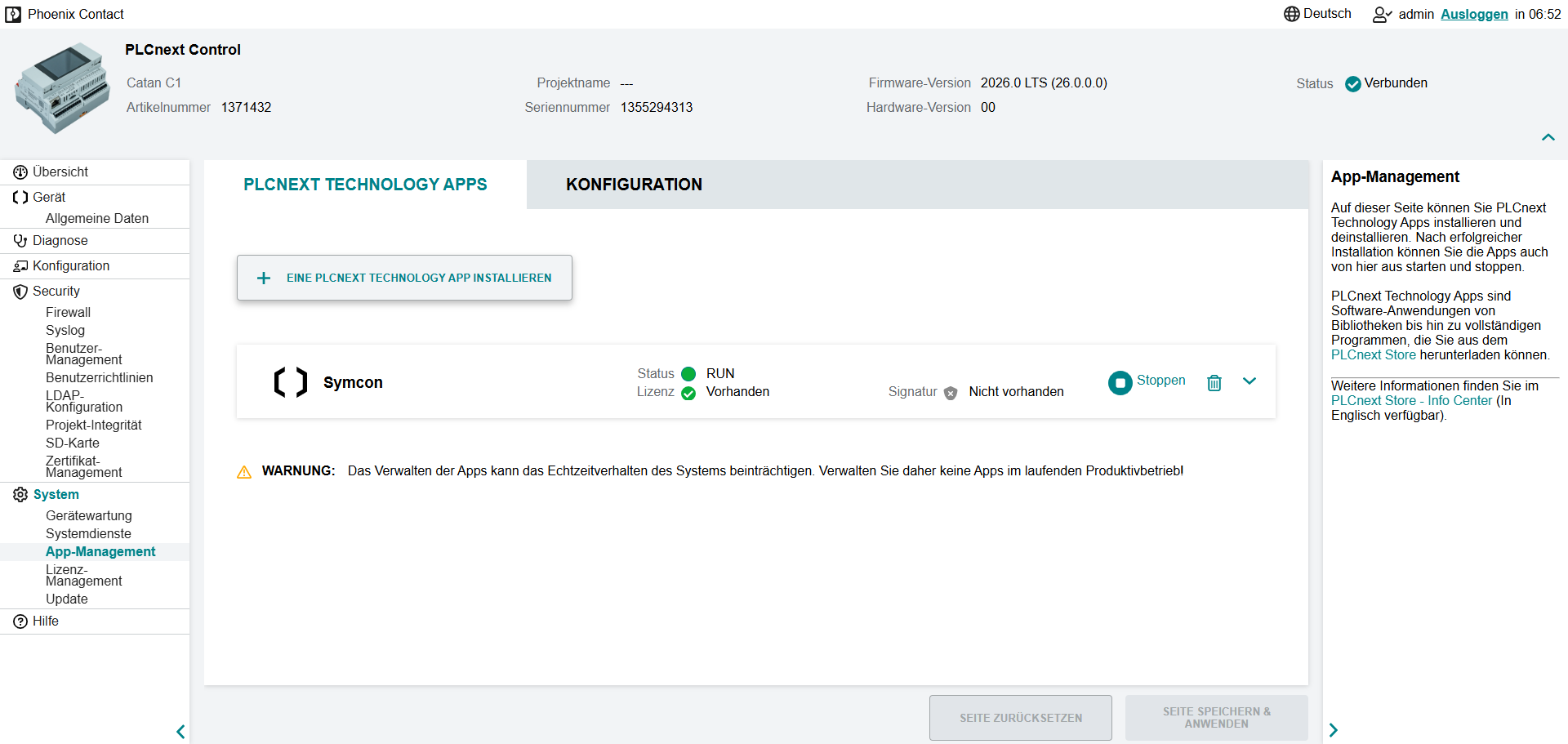
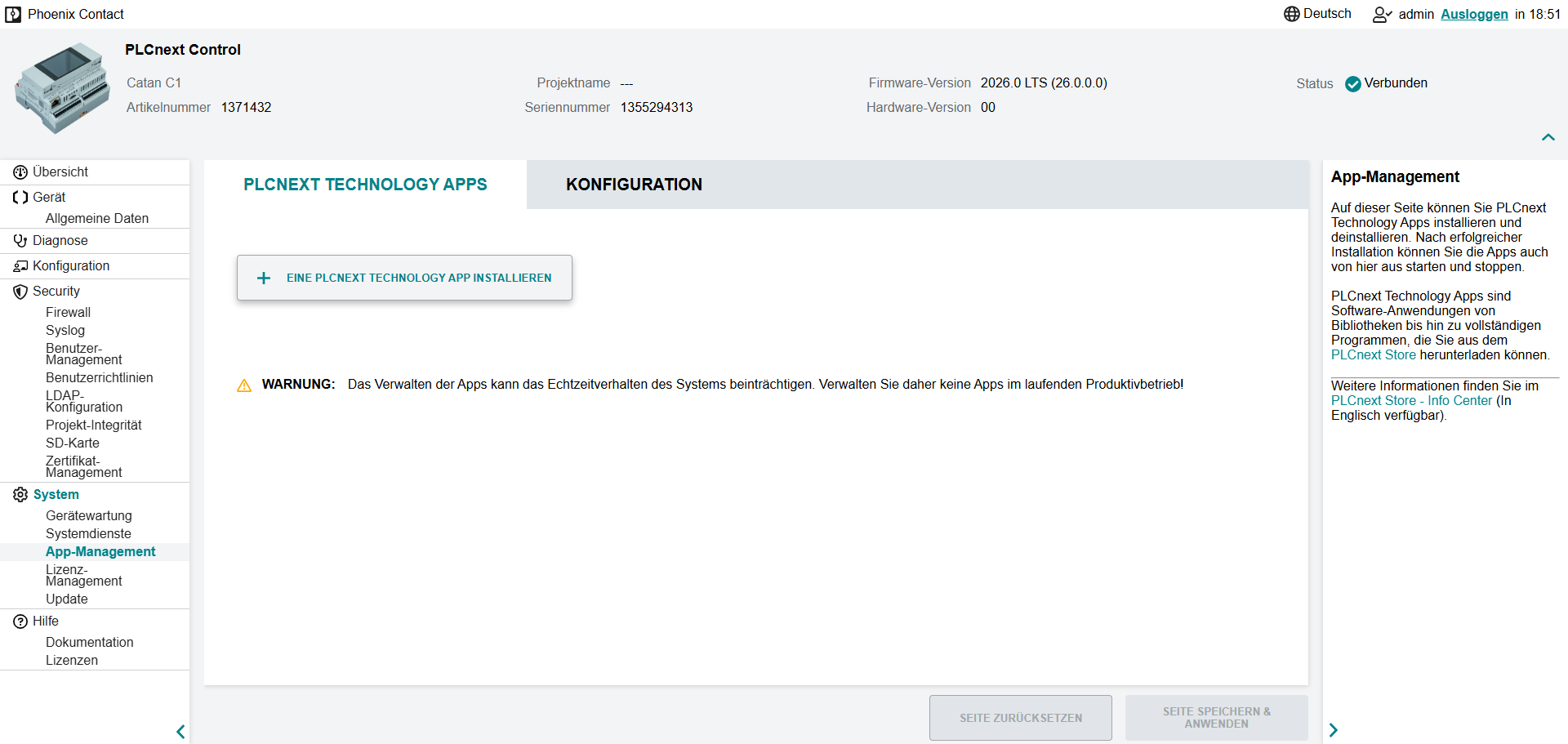
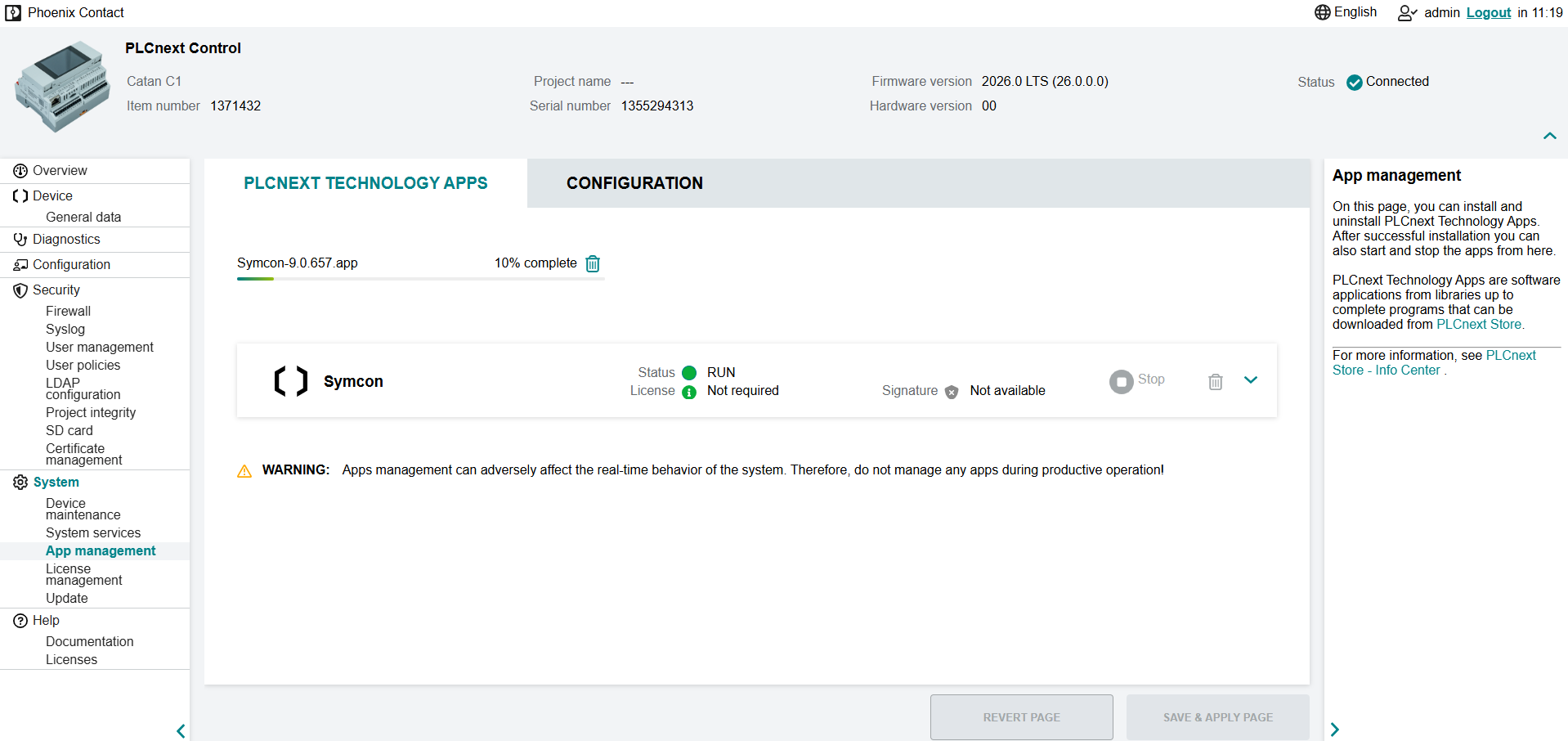
Symcon is installed as a PLCnext Technology App. The installation is carried out in WBM under Settings -> App Management. The option "Only allow signed apps" must first be deactivated under Configuration. The Symcon app file can now be installed using the corresponding button.
Once the process is complete, the web-based Management console can be accessed via http://ipadresse:3777/console/. There you can change the License in the information menu at the top right.
A description of the special functions can be found here.
Update
Current version: App file (64-bit)
To install an update, the .app file of the latest version must be reinstalled. Symcon is restarted during the installation. All data is retained.
Where_is_what
Where is what?
- /opt/plcnext/apps/home/data/60002171301055/data/ - Variable Data (Settings, scripts, media...)
- /tmp/appsdata/60002171301055/logs/ - Log Files (Logfiles...)
Uninstall
Symcon can be uninstalled via the WBM under Settings -> App Management. To do this, the Symcon app must be selected. The uninstallation can be started via the trash can icon. All data will be lost when uninstalling.