Documentation
Configuration Forms
Require: Symcon >= 4.0
The configuration forms are JSON files that are used to configure the properties of IP-Symcon instances.
These are usually loaded from the Management Console and displayed accordingly.
The JSON file describing the configuration form has up to three areas which can, independently of one another, be individually described.
A translation of the "caption" and "label" can be added via the Localizations via the locale.json.
Form areas
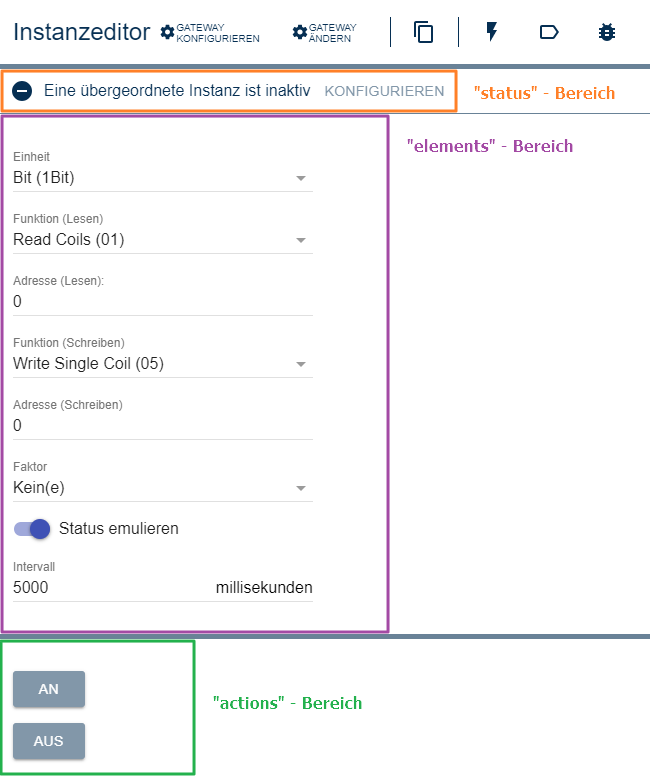
elements
Form fields defined in the "elements" area can set the properties of an instance. The name of a form field, if available, corresponds to the name of the property which is set via IPS_SetProperty. If the "elements" area is not to be visible, it must not be defined.
actions
The "actions" area is a so-called test environment. The form fields defined here cannot change the properties of the respective instance. If the "actions" area is not to be visible, it must not be defined.
The general rule: The test environment can only be used if changes have been accepted in the elements area. This prevents settings that have not been accepted from being tested.
status
The "status" area defines possible status messages. No form fields are allowed in the "status" area, only status messages which are explained under Status Message. If the module is not to display any status messages, this area does not have to be defined.
Overview of the insertable form fields
| Form field / Type | since IP-Symcon | Description |
|---|---|---|
| Button | 4.0 | Button |
| CheckBox | 4.0 | Checkbox |
| ColumnLayout | 6.0 | Column view of several form fields |
| Configurator | 5.0 | Describes a configurator |
| ExpansionPanel | 5.0 | Form fields that can be opened and closed |
| HorizontalSlider | 4.0 | A horizontal slider |
| Image | 5.0 | Creates an image on the module page |
| IntervalBox | 4.0 | Specification of numbers with text description / unit (outdated) |
| Label | 4.0 | A label |
| List | 4.2 | An editable list |
| NumberSpinner | 4.0 | Input field in which only numbers are allowed. (optionally with decimal places) |
| OpenObjectButton | 5.3 | Button that opens an object |
| PasswordTextBox | 4.0 | Input field for passwords |
| PopupAlert | 5.0 | Alarm, which opens a popup immediately |
| PopupButton | 5.0 | Button that opens a popup |
| ProgressBar | 5.2 | Progress bar |
| QrCode | 7.0 | Creates a QR code |
| RadioButtonGroup | 9.1 | Group of radio buttons |
| RowLayout | 5.0 | Row view of multiple form fields |
| ScriptEditor | 6.0 | Script editor |
| Select | 4.0 | Drop-down menu |
| SelectAction | 6.0 | Selection of an action |
| SelectCategory | 4.0 | Selection dialog for a category |
| SelectColor | 4.2 | Selection dialog for a color |
| SelectCondition | 6.1 | Input of conditions |
| SelectDate | 5.0 | Selection dialog for a date |
| SelectDateTime | 5.0 | Selection dialog for a date and time |
| SelectEvent | 4.0 | Selection dialog for an event |
| SelectFile | 4.2 | Selection dialog for a file |
| SelectIcon | 6.1 | Selection dialog for an icon |
| SelectInstance | 4.0 | Selection dialog for an instance |
| SelectLink | 4.0 | Selection dialog for a link |
| SelectMedia | 4.0 | Selection dialog for a media file |
| SelectModule | 5.5 | Selection dialog for an instance of a module |
| SelectObject | 4.0 | Selection dialog for an object |
| SelectProfile | 5.5 | Selection dialog for a variable profile |
| SelectScript | 4.0 | Selection dialog for a script |
| SelectTime | 5.0 | Selection dialog for a time |
| SelectValue | 6.3 | Selection of a value matching a variable |
| SelectVariable | 4.0 | Selection dialog for a variable |
| TestCenter | 5.0 | Test area for the status variables of the instance |
| Tree | 5.0 | Creates a tree |
| ValidationTextBox | 4.0 | Input field for text |
Examples
Basic structure of the JSON file
{
    "elements":
    [
        ... // Insert form fields here
    ],
    "actions":
    [
        ... // Insert form fields here
    ],
    "status":
    [
        ... // Insert status messages here
    ]
}
Complete example using an SMS module
{
    "elements":
    [
        { "type": "ValidationTextBox", "name": "Username", "caption": "Username" },
        { "type": "ValidationTextBox", "name": "Password", "caption": "Password" },
        { "type": "NumberSpinner", "name": "APIID", "caption": "APIID" },
        { "type": "ValidationTextBox", "name": "Sender", "caption": "Sender" },
        { "type": "Select", "name": "SMSType", "caption": "Type",
            "options": [
                { "caption": "SMS", "value": 0 },
                { "caption": "Combi-SMS", "value": 1 },
                { "caption": "MMS", "value": 2 }
        ]}
    ],
    "actions":
    [
        { "type": "ValidationTextBox", "name": "Number", "caption": "Number" },
        { "type": "ValidationTextBox", "name": "Message", "caption": "Message" },
        { "type": "Button", "caption": "Send Message", "onClick": "SMS_Send($id, $Number, $Message);" },
        { "type": "Button", "caption": "Read Balance", "onClick": "echo 'Balance: '.sprintf('%.2f', SMS_RequestBalance($id)).' credits';" }
    ],
    "status":
    [
        { "code": 102, "icon": "active", "caption": "Login information valid" },
        { "code": 201, "icon": "error", "caption": "Authentication failed" },
        { "code": 202, "icon": "error", "caption": "No credits left" }
    ]
}
Validation
A JSON schema is available for configuration forms: formSchema.json
The schema describes all form fields and their parameters as they are supported by the Management Console. Unknown form fields, typos in parameter names, wrong data types (e.g. "digits": "2" instead of "digits": 2) and parameters that have no effect on the respective form field are reported as errors.
With the schema, editors like Visual Studio Code or PhpStorm offer autocompletion and check the form.json while editing. To do this, the schema is specified in the form.json:
{
    "$schema": "https://www.symcon.de/assets/files/validation/formSchema.json",
    "elements": [ ... ]
}
Alternatively, the schema can be assigned to the file form.json in the settings of the editor, in Visual Studio Code e.g. via the setting json.schemas.
Forms that are generated dynamically via GetConfigurationForm must also match the schema. Parameters like "options" or "columns", which are often only added there, are therefore optional in the schema.
The schemas for the other files of a module are listed under Structure.